Secondary Session
A fixed 24‑hour session providing independent structure, value levels and volume distribution.
The Secondary Session represents a fully independent 24‑hour window that runs separately from your primary trading session. It provides a broader structural view of the market, including its own volume profile, POC, value area and LVNs. This gives you a clean higher‑timeframe context layer without mixing it into the current intraday footprint.
You can freely choose the session window — 24h, EU, US or AS — and also shift it back by any number of days. Each Secondary Session is always a single, closed session window.
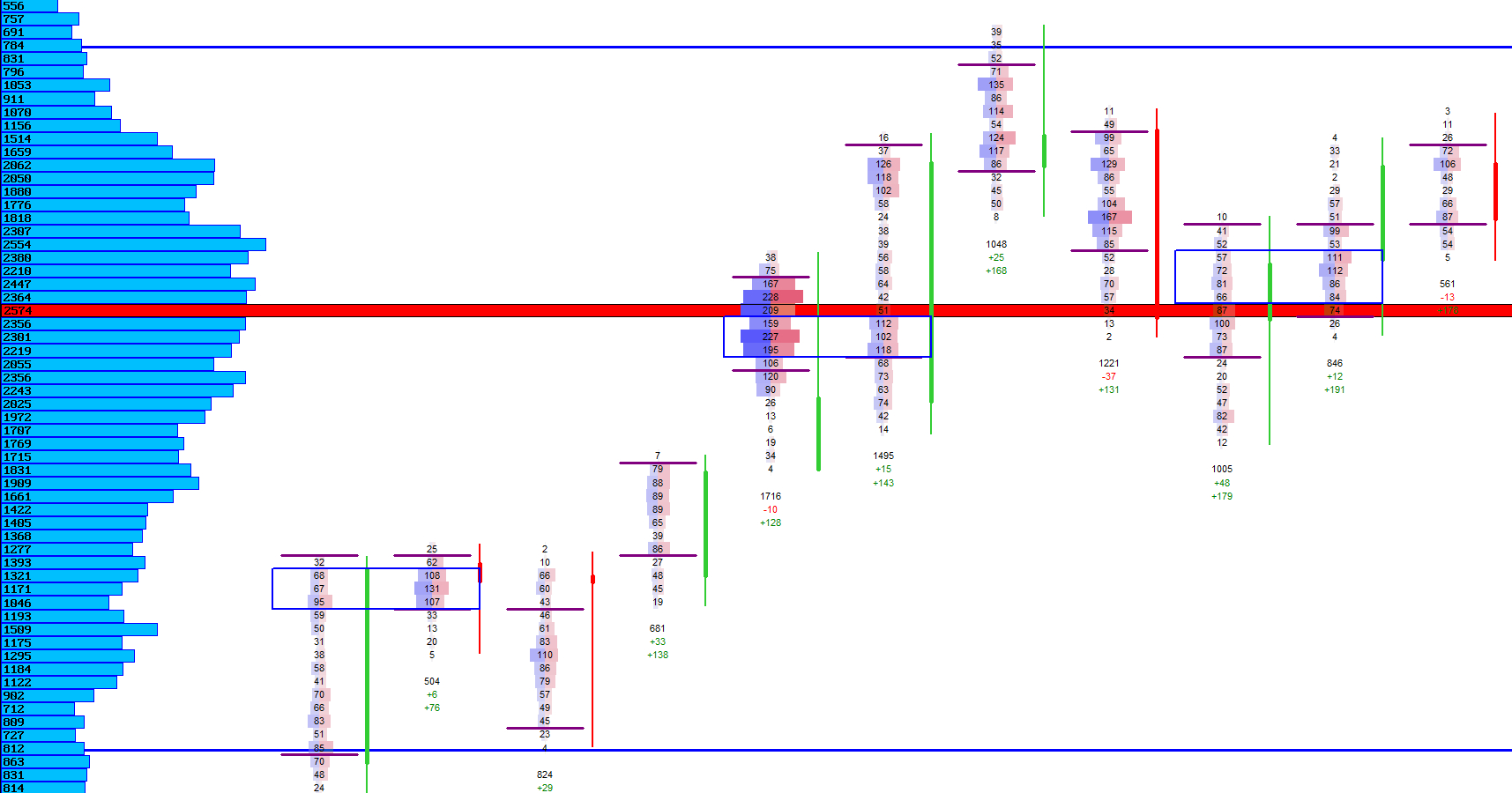
Secondary Volume Profile
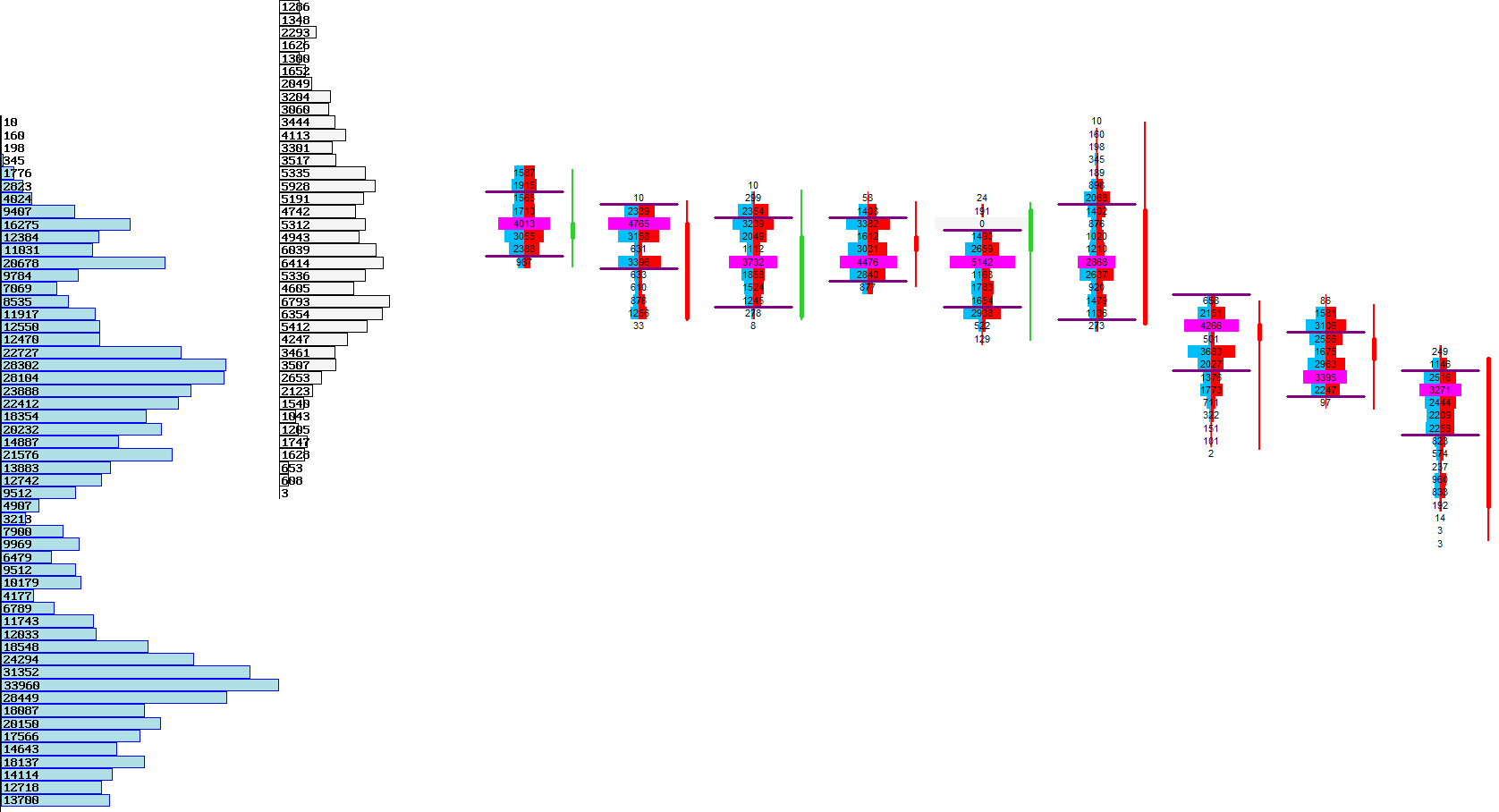
A complete distribution of traded volume across the fixed session window.
The Secondary Volume Profile shows how much volume traded at each price level during the selected session window. It reveals where the market spent time, where liquidity accumulated and where participation was thin.
Because it is calculated independently from the primary session, it provides a clean comparison between intraday activity and the broader session structure.
Volume Profile Modes
| Mode | Description |
|---|---|
| Standard Secondary Profile | Draws the full volume distribution of the selected session window. |
| Minimalist Profile | Uses thin bars for a clean, unobtrusive layout. |
| Session‑Range Mode | Builds the profile from a fixed session window (24h, EU, US, AS). |
Visual Example: Secondary Volume Profile
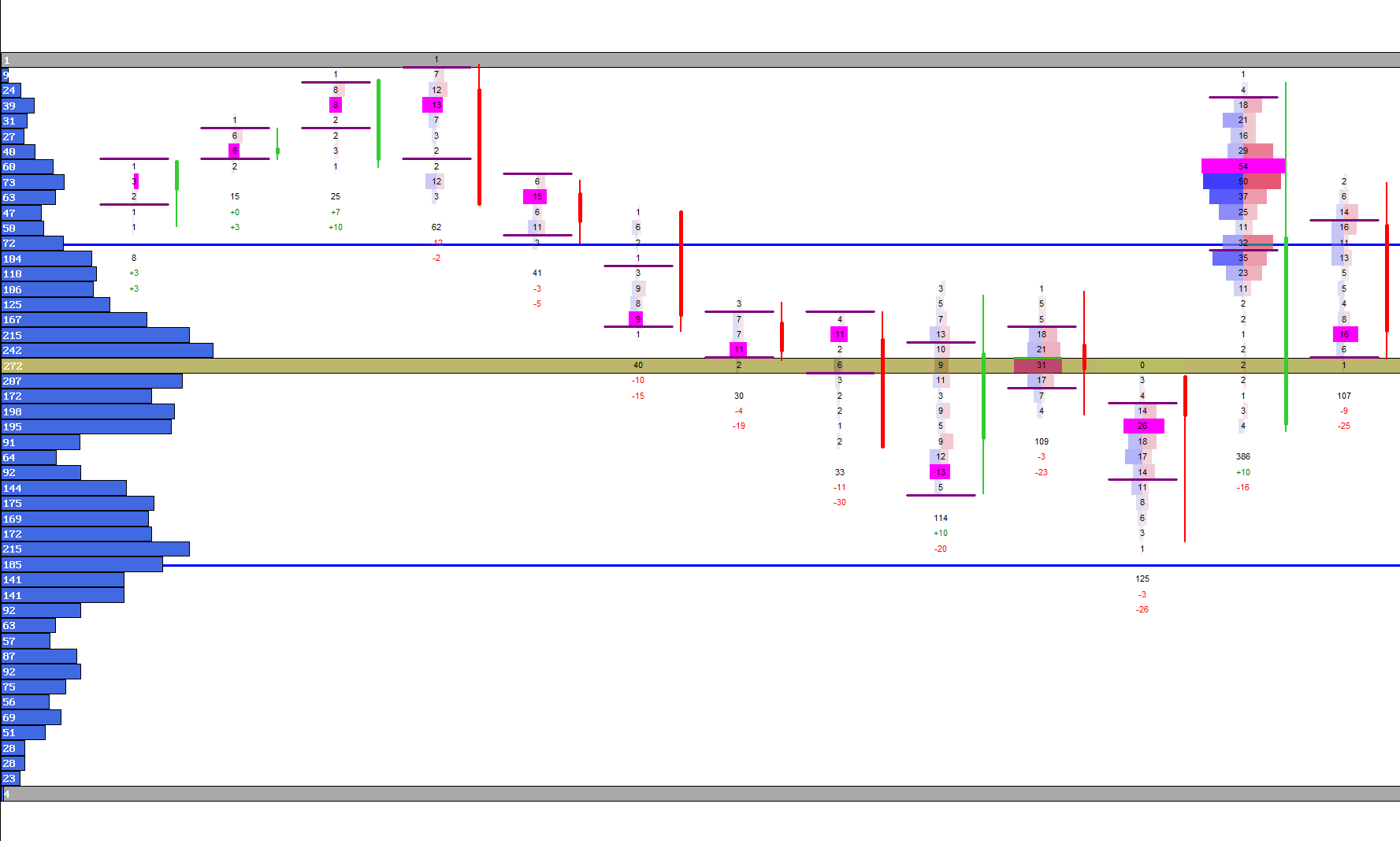
Secondary POC
The strongest price level of the selected session window.
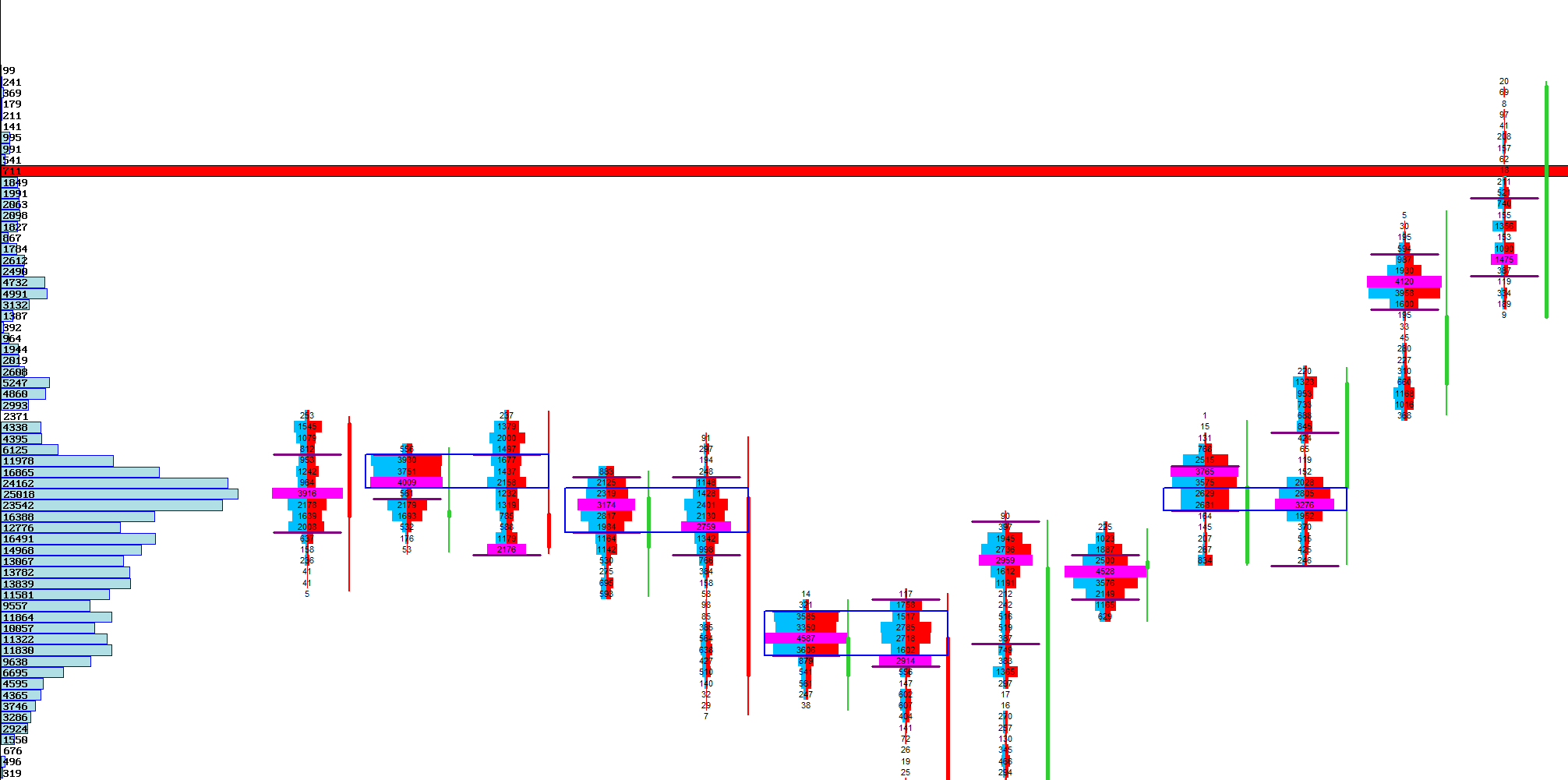
The Secondary POC marks the price where the most volume traded during the fixed session. It often acts as a broader fair‑value anchor and reveals where the market accepted value over the longer period.
When the intraday auction interacts with this level, it often signals whether the market is aligning with or rejecting the larger session’s structure.
POC Modes
| Mode | Description |
|---|---|
| Standard Secondary POC | Draws the most traded price level of the selected session window. |
| Minimalist POC | Uses a thin line for low‑noise layouts. |
| Session‑Range POC | Calculates the POC from a fixed session window (24h, EU, US, AS). |
Visual Example: Secondary POC
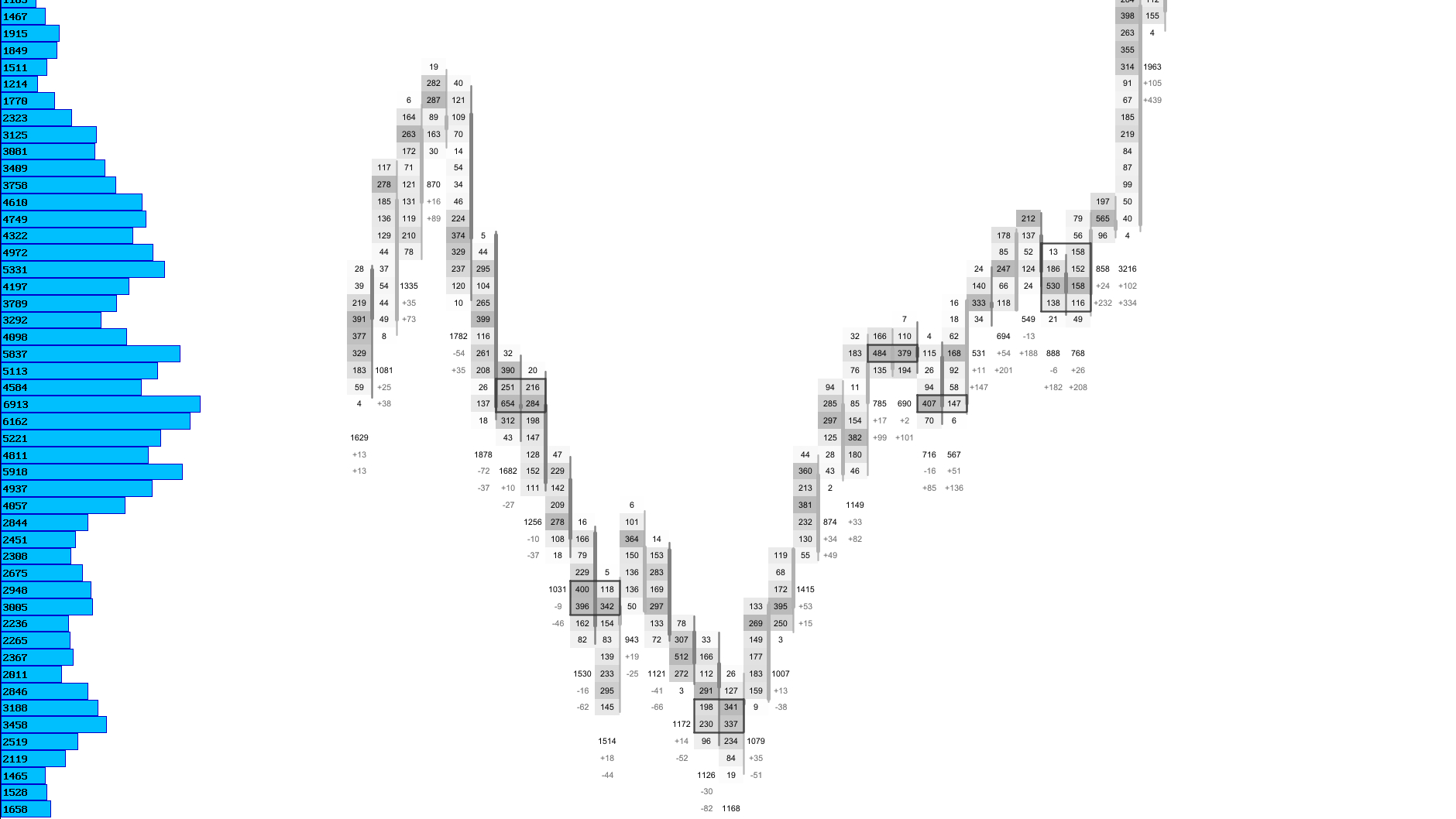
Secondary VAH / VAL
The upper and lower boundaries of the secondary value area.
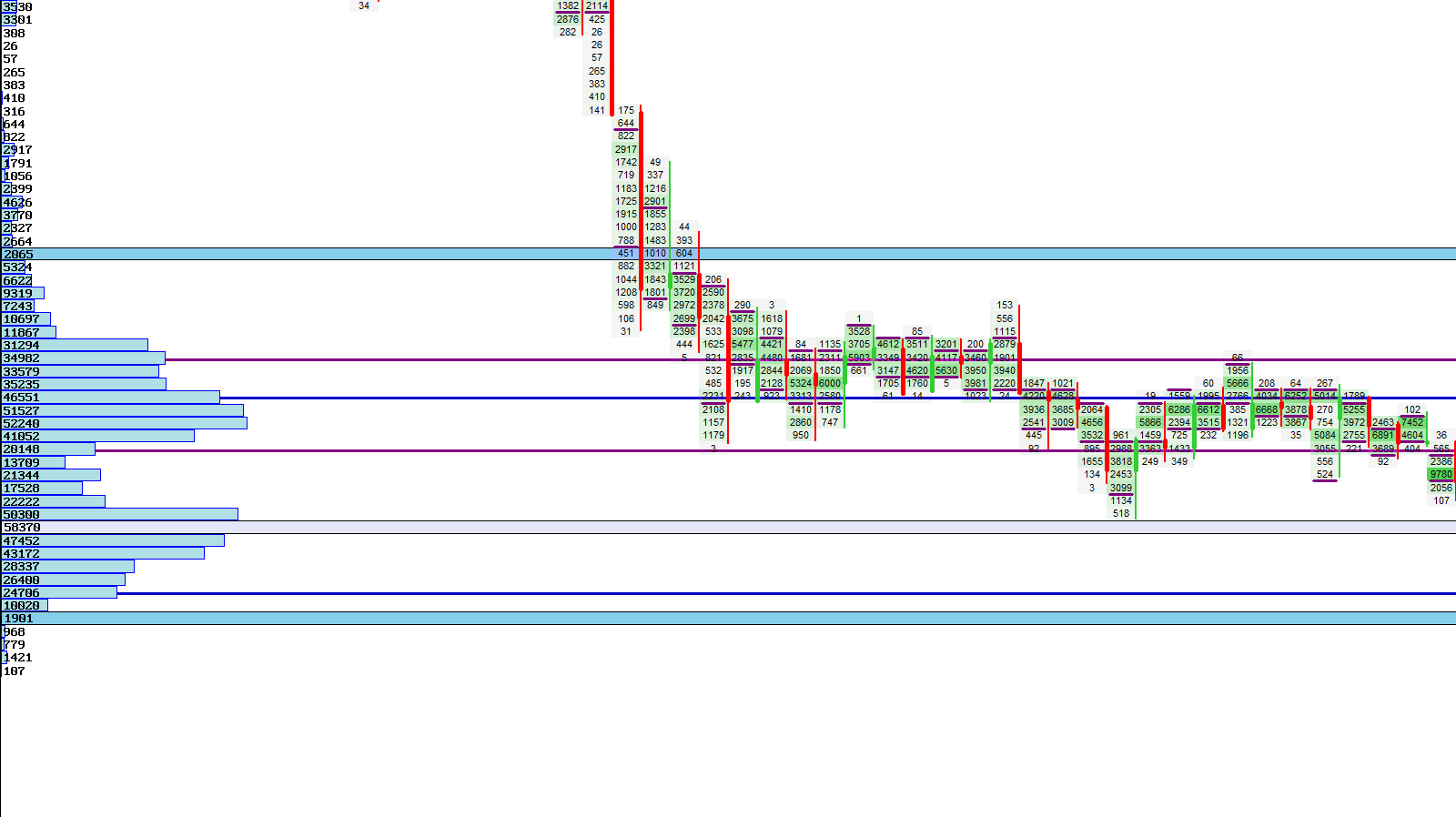
The Secondary Value Area shows where most of the session’s volume traded. These boundaries help you understand whether the current market is operating inside or outside the broader fair‑value region.
When price interacts with these levels, it often reveals whether the market is accepting or rejecting the larger session’s value structure.
Value Area Modes
| Mode | Description |
|---|---|
| Standard VAH / VAL | Draws the value area boundaries of the selected session window. |
| Minimalist VA Lines | Uses thin, unobtrusive lines for clean layouts. |
| Session‑Range Value Area | Computes VAH/VAL from a fixed session window (24h, EU, US, AS). |
Visual Example: Secondary VAH / VAL
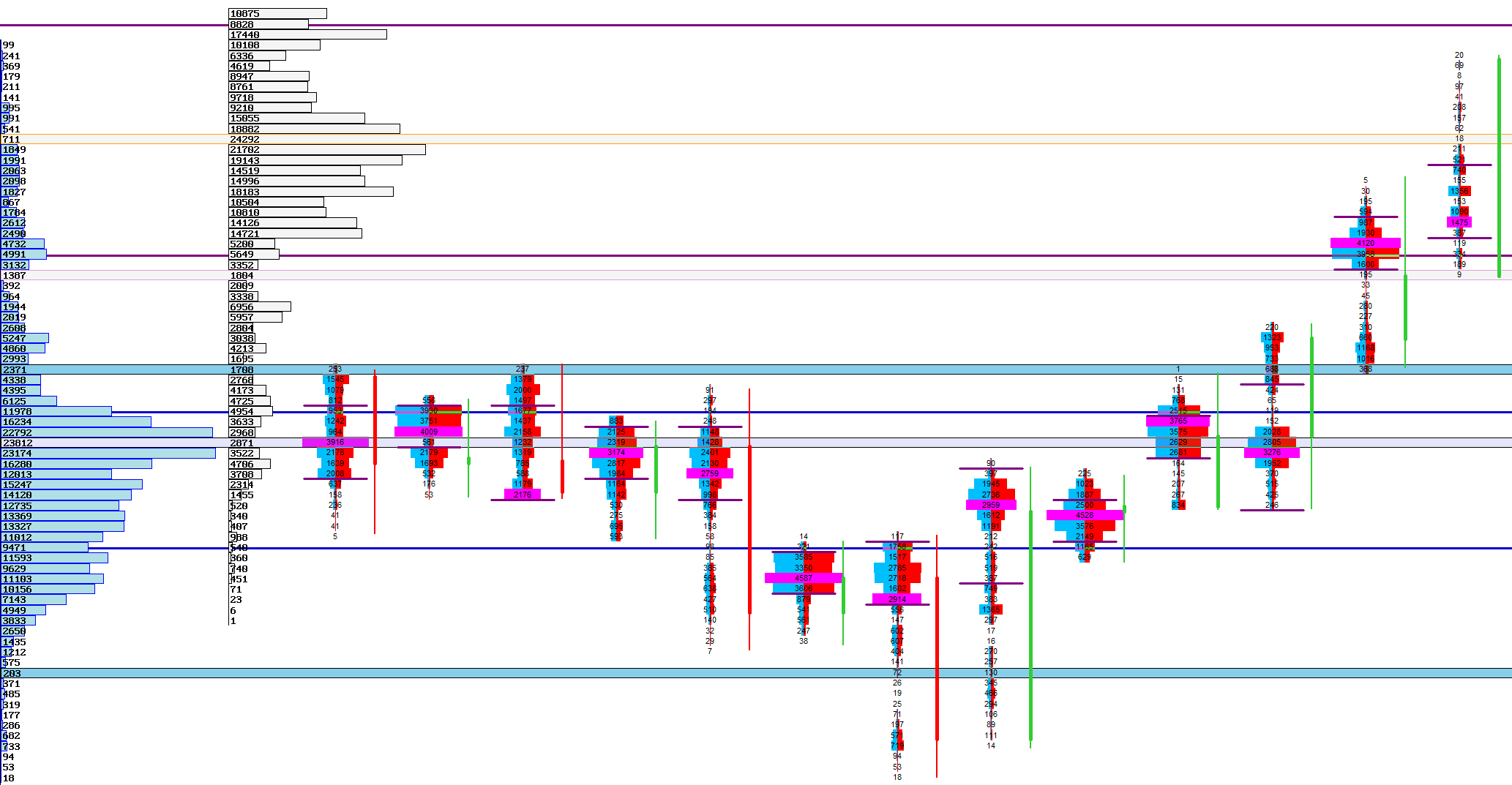
Secondary LVN
Detect rejection zones and low‑interest prices inside the secondary session.
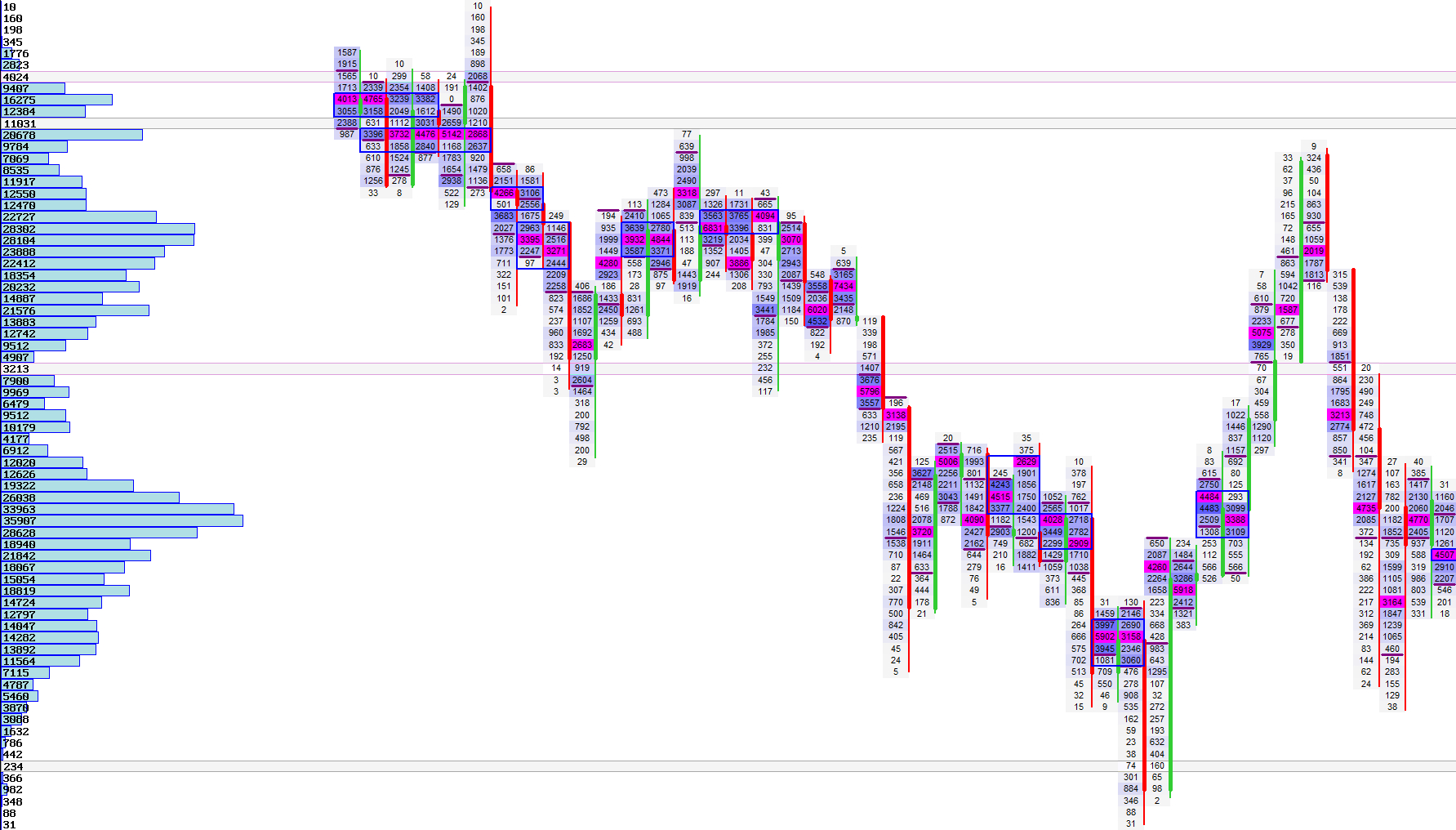
Secondary LVNs highlight price levels where participation dropped sharply within the selected session window. These areas often act as rejection points or thin spots where the market moved quickly.
Because they are derived from a broader session, they frequently align with structural turning points that intraday traders watch closely.
LVN Modes
| Mode | Description |
|---|---|
| Standard Secondary LVNs | Draws low‑volume rejection levels inside the selected session window. |
| Minimalist LVNs | Uses thin borders for subtle structural hints. |
| Session‑Range LVNs | Identifies LVNs within a fixed session window (24h, EU, US, AS). |
Visual Example: Secondary LVN
Next Chapters
Continue exploring advanced orderflow modules.